ECHS claim work
in half the time, without errors
All claims in one place, AI form filling, a complete pre-submit check, documents, NMI tracking and reports — built for hospital staff, right beside the portal.
- v5.6.9latest version
- 0updates so far
- 6tabs per claim
- 0auto-submits
 ✅ Claim check passed
⟳ Synced every 2 min
🤖 AI read 3 documents
Watch it work
A quick look at the daily workflow — sample data only.
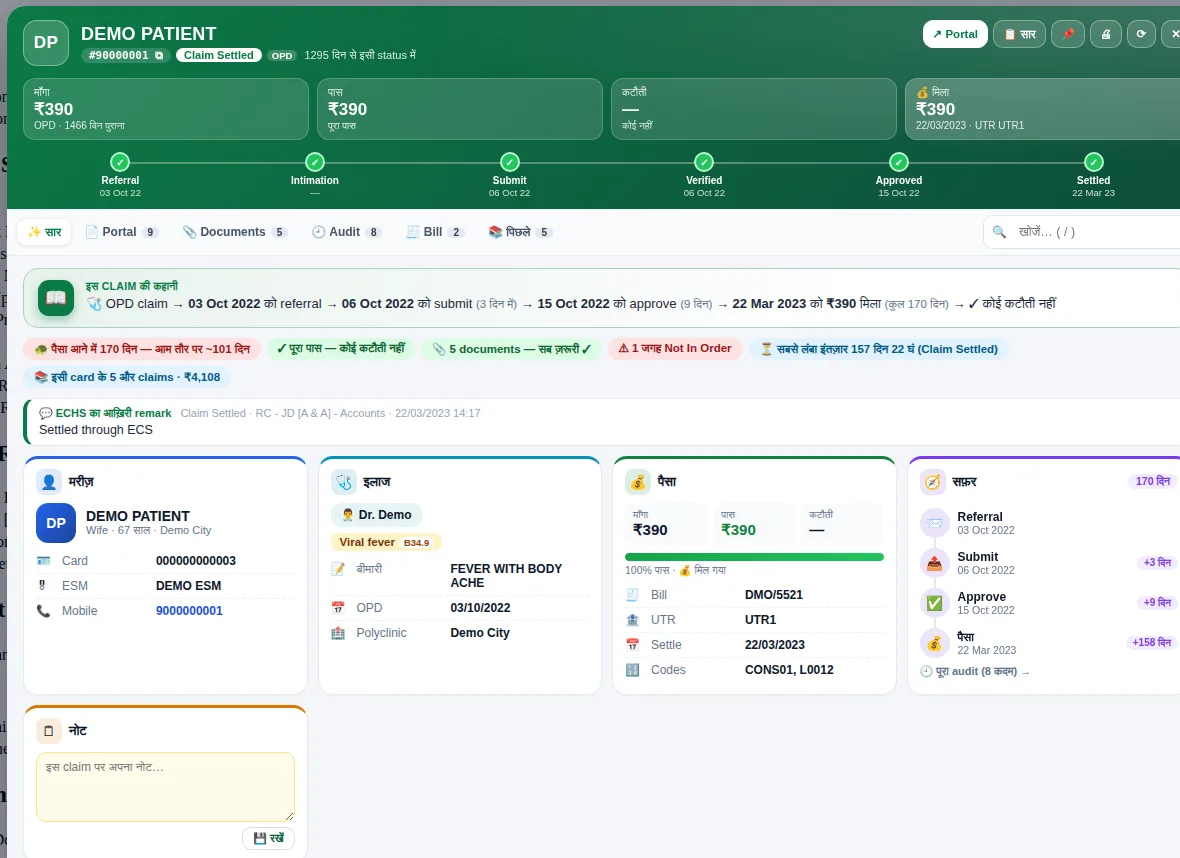
Every part of the daily claim workflow
What used to take ten portal pages now happens in one side panel.
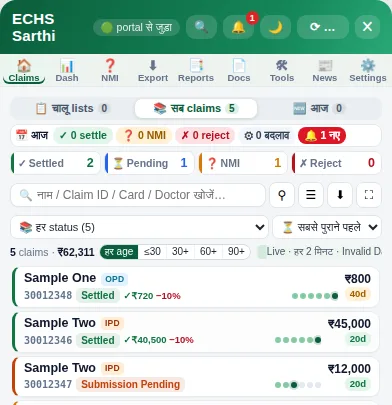
Every claim in one place
Claims of every status in a single list — silently synced every 2 minutes, active work lists, sort by age or amount, one-click Excel.
Learn more → 🧾The full story of a claim
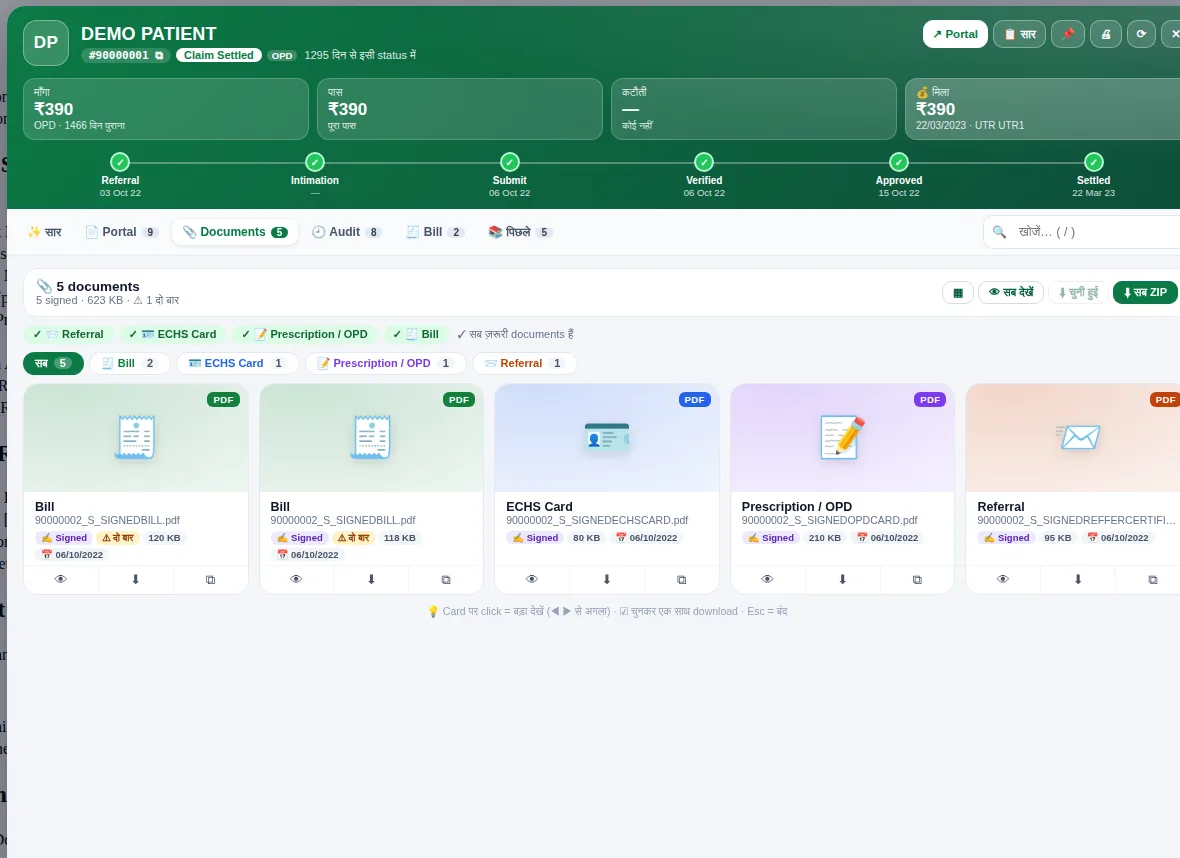
Everything about a claim on one full screen — Summary, Portal, Documents, Audit, Bill and Previous claims, in six tabs.
Learn more → 🤖AI form filling
Reads bills, prescriptions and discharge summaries to fill the form and expense worksheet. You review every field before moving on.
Learn more → ✅Pre-submit check
Checks required documents, amounts, dates, codes and signed copies — and explains every problem in plain words.
Learn more → 📎Effortless documents
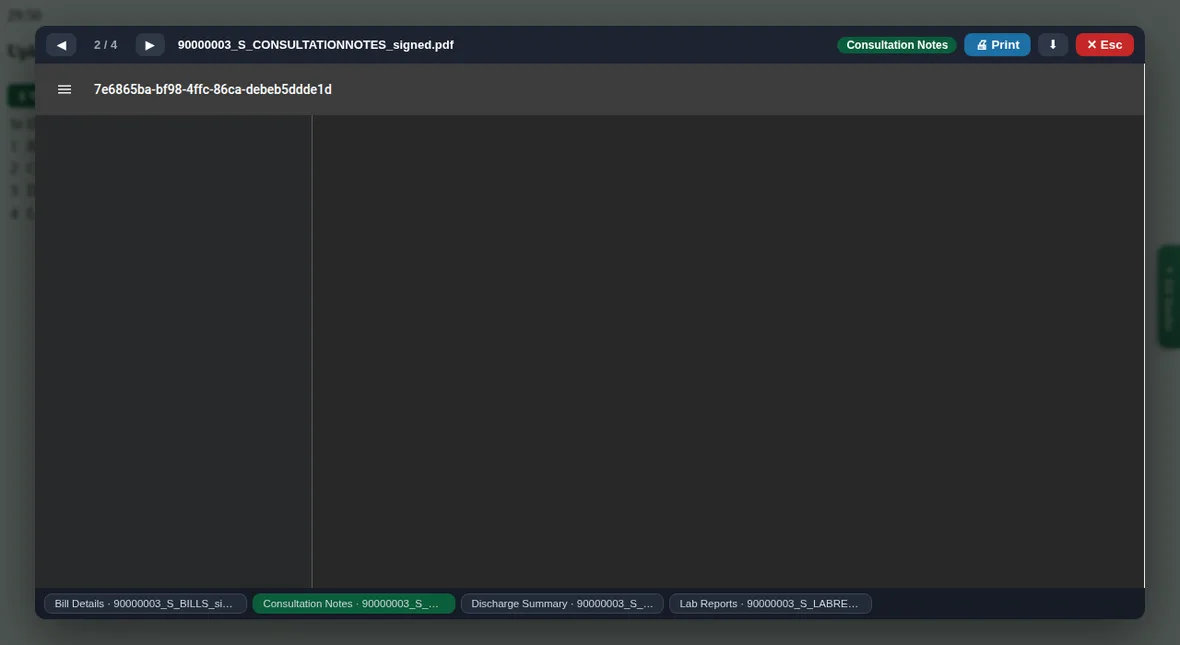
Bulk upload with original file names kept, a View button in the portal’s document table, print from preview, download all as ZIP.
Learn more → ❓NMI / query tracking
See which claims have a query, how many days are left and which documents were asked for — repeat queries flagged, reply templates ready.
Learn more → 🕘Audit timeline
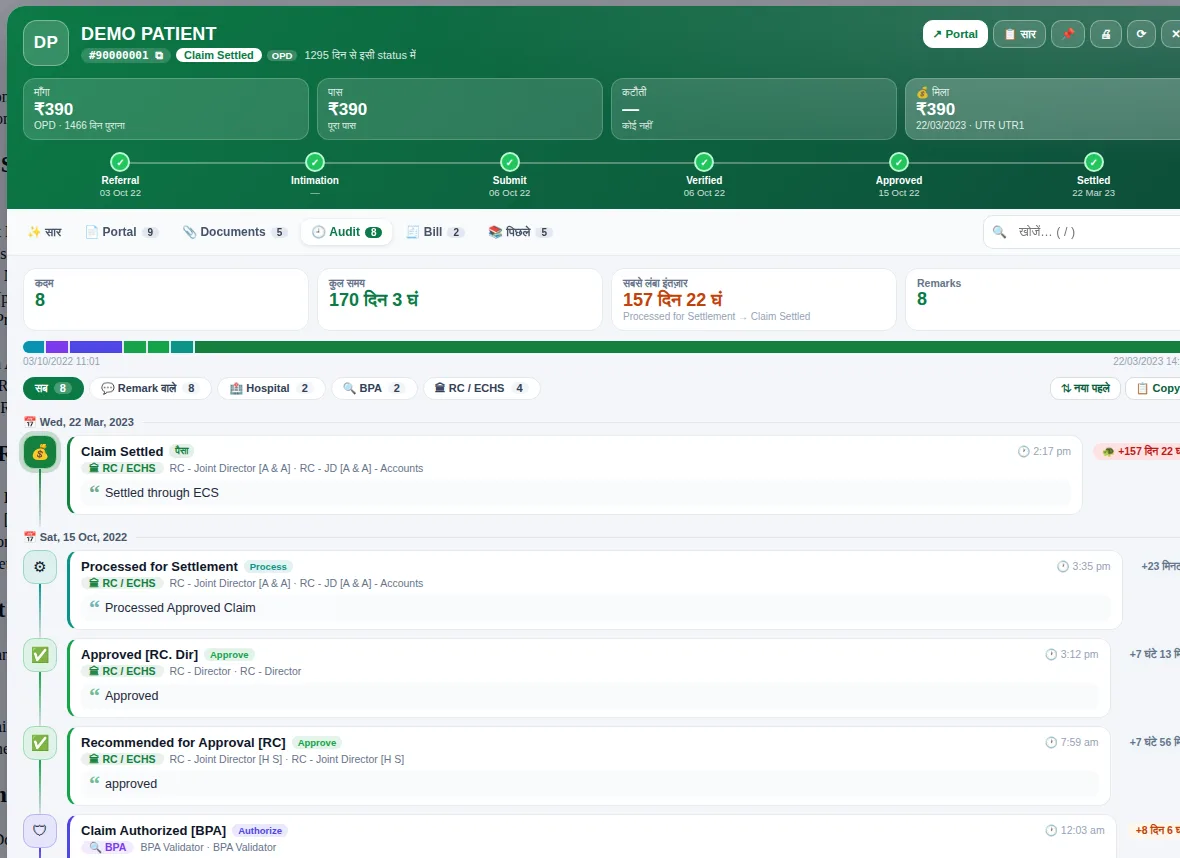
How long a claim waited at each step, who held it and where the longest delay was — at a glance.
Learn more → 💰Bill and settlement
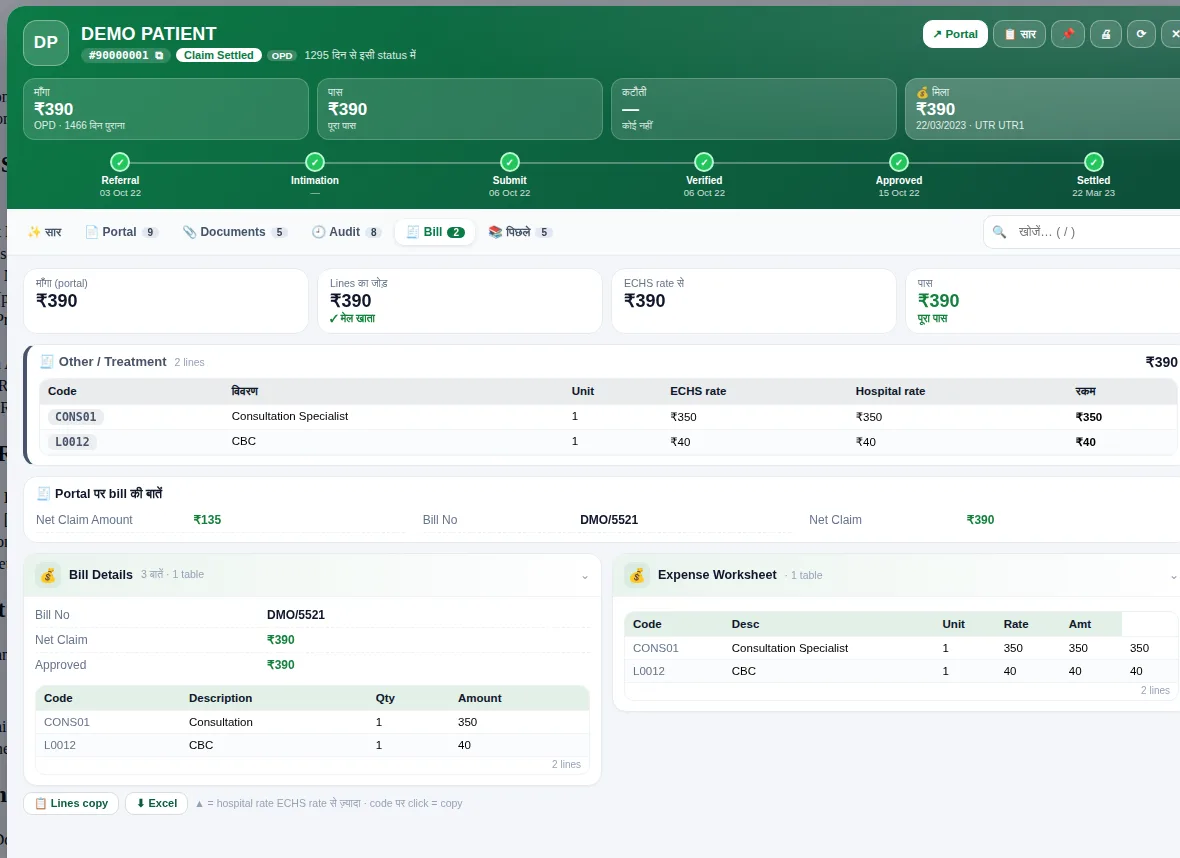
Submitted package / procedure codes, comparison with ECHS rates, deductions and UTR — all in one view.
Learn more → 📊Reports and Excel
Dashboards, scheduled exports, cover sheets, letters and monthly reports — no manual totalling.
Learn more → 🔔Notification centre
Instant alerts for new NMI, rejection or settlement. Mobile summaries carry counts only — never a patient name.
Learn more → ⌘Command palette
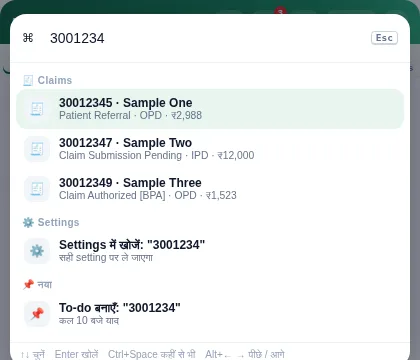
Press Ctrl+Space and open any claim, tool or setting from a single search box.
Learn more → 📈Staff analytics
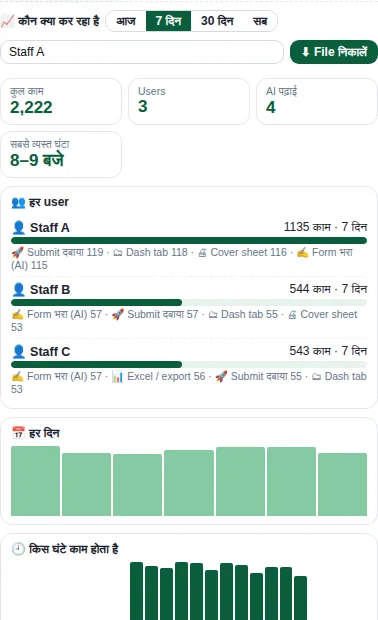
Which user did what and how often, and the busiest hours — counts only, kept on the same computer.
Learn more →See it in action
All screenshots use made-up sample data — no real patient, hospital or claim.
Portal by hand vs ECHS Sarthi
Four steps, every day
- 1
Log in to the portal
Log in to the ECHS BPA portal as usual. The ◂ ES Sarthi button on the right opens the side panel.
- 2
Claims arrive on their own
Claims of every status refresh silently every 2 minutes, with instant alerts for NMI, rejection and settlement.
- 3
Fill and check
Pick the documents, let AI fill the fields and review them. The pre-submit check shows every mistake.
- 4
You submit
You press the final Submit yourself. After that the claim’s whole journey — audit, bill, payment — stays visible in the extension.
Built on trust
Hospital claim data is sensitive — so some rules are never broken.
✔ What it does
- Reads claims inside your own logged-in portal session and shows them in one place
- Fills forms and uploads documents when you ask it to
- Checks the claim before submission and explains every issue
- Keeps claim data on the same computer; backups never include API keys or PINs
- Never refreshes or interferes while a claim form is open
✕ What it never does
- Submit a claim automatically
- Bypass a CAPTCHA, or enter or store a password
- Send patient data to this website or any server of ours
- Pick ICD codes automatically or rename your files
- Put a patient’s name in mobile notifications — counts only
Always getting better
107 updates so far — the latest below.
- v5.6.9
- Tools → Analytics: new “Export file” button — saves a counts-only usage file that you can upload to the admin panel yourself (the extension never sends it anywhere)
- v5.6.8
- “View” button next to every file in the portal’s documents table — preview, print, close with Esc
- v5.6.7
- The ◂ ES Sarthi button now always opens — falls back to an in-page panel if the side panel can’t open; reminder to press F5 after a reload
- v5.6.6
- Redesigned Bill tab — submitted package / procedure codes, comparison with ECHS rates, Excel export
- v5.6.5
- Redesigned Previous Claims tab — family view, year-wise totals, timeline
Installing and updating
🆕 First install
- Unzip the file — you’ll get an
ECHS_Sarthifolder. Keep it in a permanent place (e.g. D:\ECHS_Sarthi) - Open
chrome://extensionsin Chrome and turn on Developer mode (top right) - Click Load unpacked and select the
ECHS_Sarthifolder - Open the portal and log in — ◂ ES Sarthi appears on the right
⬆ New version
- Replace the files inside the same
ECHS_Sarthifolder (not a new folder) - In
chrome://extensionspress ↻ Reload — never Remove (that deletes your data) - If a claim form is open on the portal, Save it first, then press F5
- Reopen the side panel — “What’s new” will appear
📦 Download
v5.6.9
Downloads are for hospitals only — send an enquiry below and we’ll share the link.
📩 Request the linkFrequently asked questions
What is ECHS Sarthi?
A Google Chrome (and Microsoft Edge) extension that simplifies hospital claim work on the ECHS BPA portal — claim lists, checks, documents, NMI and reports, all in one side panel.
Does it submit claims automatically?
No. You always press Submit yourself. The extension helps fill the form and shows a check before submission, but the final decision is always yours.
Does the extension enter the portal password or CAPTCHA?
No. You enter the login, password and CAPTCHA yourself. The extension neither stores nor fills them.
Where is patient data kept?
Claim information stays on the same computer, in Chrome’s extension storage. Neither this website nor any server of ours receives it. If you use AI reading, only the documents you choose are sent to the AI service of your own API key — see the Privacy Policy for details.
On how many computers can it run?
On every computer where portal work is done. Each computer keeps its own data, and backup / restore lets you move it from one to another.
How do I install a new version?
Replace the files in the same ECHS_Sarthi folder → press ↻ Reload in chrome://extensions (never Remove) → if a claim form is open, Save it → press F5 → reopen the side panel.
What if the portal design changes?
The extension uses several methods to cope with portal changes, and a new version is released quickly when needed — every change is listed in the Changelog.
Have a question? Let’s talk
Demo, information, an issue or a suggestion — fill in the form and we’ll get back to you soon.